

Having a well-crafted email signature is more than an aesthetic issue: it’s a digital business card. A personalized signature not only communicates professionalism but makes you immediately recognizable and how to contact you.
With Thunderbird, creating and updating your own HTML signature is simple, fast and allows you to add all your data clearly and consistently. In this article we explain step by step how to do it correctly.
Create and modify the HTML file
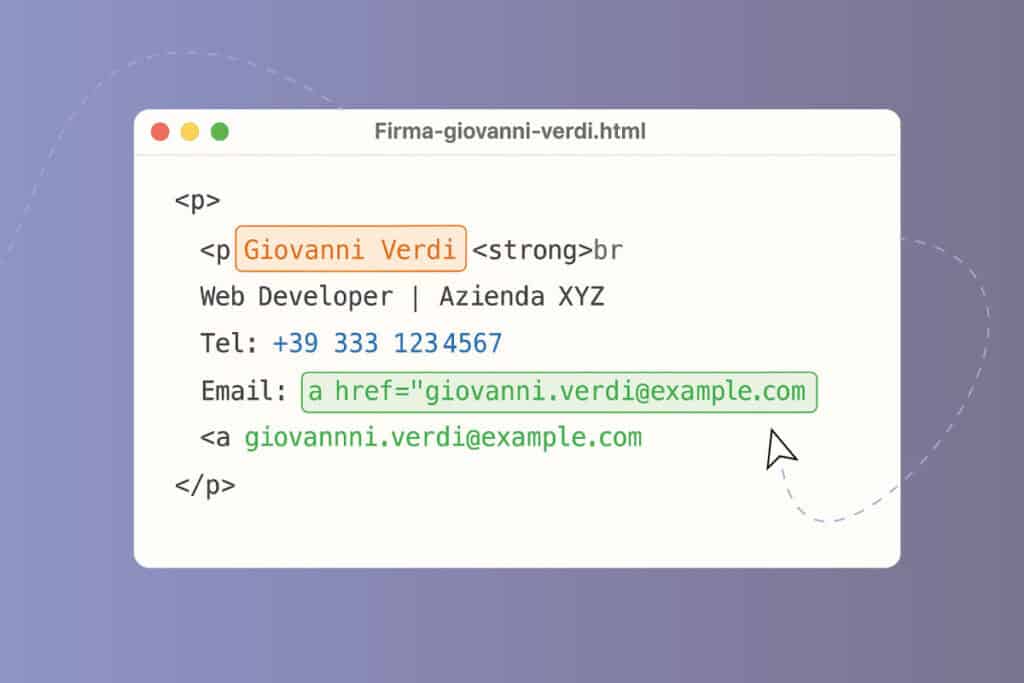
The first step consists in duplicating the provided HTML file and renaming it with your first and last name. For example, if the original file is named Firma-mario-rossi.html, the new file will become Firma-giovanni-verdi.html.
Open the duplicated file with a text editor of your choice, such as Blocco Note su Windows or TextEdit su Mac. Within the document, identify the section dedicated to your name and surname (usually immediately after the sixth line) and replace it with your data. In the following lines, also update position, phone number and email address.
A important detail: modify the email address both in the part mailto: and in the portion visible immediately after the symbol >. Do not alter or remove any other HTML tags, otherwise the signature might not be displayed correctly.
Insert the signature in Thunderbird
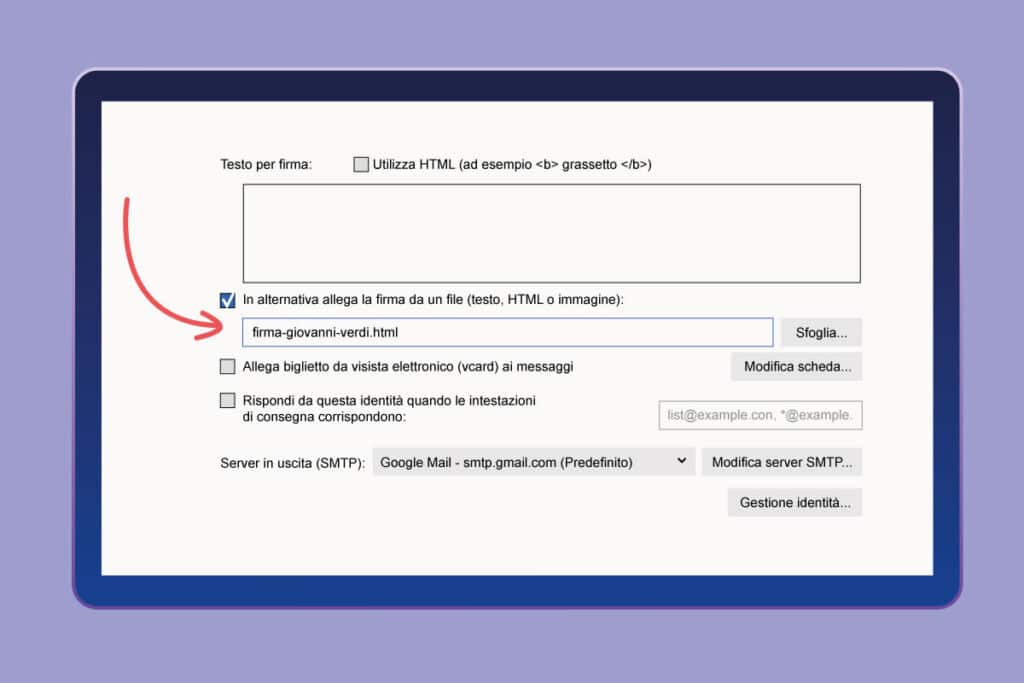
Once you have saved the updated file, open Thunderbird. From the main menu (the three lines in the upper right corner), go to Preferences > Account Settings or directly to Account Settings, depending on the version.
In the section dedicated to the signature, select “In alternativa, allega la firma da un file (testo, HTML o immagine)”, then click on Browse and upload the just modified HTML file.
To verify that everything works, send a test email to yourself. If a warning about remote contents appears, click on Options > Show remote contents of this message to view any images or graphical elements included in the signature.
Conclusions
Following these steps you will have a personalized, professional and ready-to-use email signature, which will be visible in all your communications. A well-realized signature not only simplifies contact with those who write to you, but also conveys a polished and reliable image.
If you want to optimize your signature, resolve any display issues, or receive support in configuring on Thunderbird, contact us: we will guide you step by step and ensure that every message you send reflects your professionalism as best as possible.
And, if you’re new to Thunderbird and need to set up the H4A email box on Thunderbird on your computer,
check out our video tutorial right away!